


As you know, some time back we implemented a new 2FA (two-factor authentication) system by where a password is used, in conjunction with a second factor, to enable a successful login to the forum. These second factors can be an "Authenticator" app (such as Microsoft Authenticator, Google Authenticator, Authy, etc.) or a six-digit code sent to your forum registration e-mail, which much be entered into the forum to enable a succesful login.
This must be repeated every 30 days, or if you are logging into the forum for the first time using a new computer, or browser (and then subsequently every 30 days). There is more information, background and HOW-TO on the 2FA system located in this thread.
Essentially, the 2FA system provides a secondary verification check that re-verifies every 30 days that the person with the 500Eboard login "cookie" stored for their browser, is who they say they are.
==================
What you may not know, is that there is another, very modern, way to log into the forum, and this is using a "Passkey." This capability is built into the forum software, and all you have to do is enable it ONCE.
Essentially, a passkey is a permanent, machine-specific code that REPLACES a password, and eliminates the need for the entire 2FA system. It also eliminates the 30-day 2FA re-authentication requirement.
If you are not familiar with a Passkey, it is a credential that is stored on your computer that is enabled biometrically (i.e. through your phone's camera, or touch ID button) or device PIN.
The good thing about a passkey is that it makes your login much more seamless. You literally don't have to enter ANYTHING into the computer (such as a password or passcode), and just OK the computer to use the stored passkey, or use your phone/tablet's camera or fingerprint ID capability.
So, if you are interested in setting up a 500Eboard Passkey, its something you only have to do ONCE. If you want to do this, here is a "HOW-TO" procedure.
First, while you are logged into 500Eboard, click on your name & avatar near the top right of the screen.
In the drop-down menu, select the "Passwords and security" menu item.
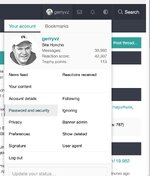
You will find this screen, as shown below. The bottom portion of this screen is where you would change your forum password, if you wanted to do that.
DO NOT CHANGE YOUR FORUM PASSWORD.

Rather, look for the black "Add passkey" button on the right side of your screen:

Click this black button. You will have a confirmation prompt to save a passkey to the computer or phone. My desktop computer showed the prompt below:

When you click "Continue" or "OK", a Passkey will be created and stored on your device.
In this case, I actually stored TWO passkeys on my computer -- one being in a third-party password-keeper app called "1Password," and the second Passkey stored in the standard "Apple Passwords" application.
It will be a similar process if you have a Windows computer, or Android device, though you won't have these specific apps.

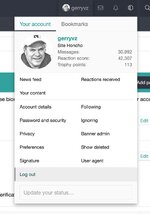
Next, you want to test your Passkey. Go back to your name menu, and select "Log out"
Logging out will direct you to the main forum screen after logout is complete.
Click "Log in" at the top of the screen, and you will be presented with this screen.

DO NOT ENTER YOUR ID AND PASSWORD.
Instead, click the "Log in using Passkey" button at the bottom of the dialog box.
Your stored Passkey should come up. In my case, the 1Password stored Passkey came up in a small window at the top right of the screen. Click the button to complete the login, and you will then be done, and routed to the main forum screen.

You should not have to log in every 30 days after this, as long as you use the Passkey on your device to log in. And it should remain persistent between individual sessions.
You will need to create a new Passkey for every device that you use to log into the forum. So, you will need a Passkey created and stored on your desktop computer (if you use one), your tablet, and your mobular phone. Whatever you use to access the forum.
That should be it !! Enjoy a quicker, more seamless and less annoying forum login process.
This must be repeated every 30 days, or if you are logging into the forum for the first time using a new computer, or browser (and then subsequently every 30 days). There is more information, background and HOW-TO on the 2FA system located in this thread.
Essentially, the 2FA system provides a secondary verification check that re-verifies every 30 days that the person with the 500Eboard login "cookie" stored for their browser, is who they say they are.
==================
What you may not know, is that there is another, very modern, way to log into the forum, and this is using a "Passkey." This capability is built into the forum software, and all you have to do is enable it ONCE.
Essentially, a passkey is a permanent, machine-specific code that REPLACES a password, and eliminates the need for the entire 2FA system. It also eliminates the 30-day 2FA re-authentication requirement.
If you are not familiar with a Passkey, it is a credential that is stored on your computer that is enabled biometrically (i.e. through your phone's camera, or touch ID button) or device PIN.
The good thing about a passkey is that it makes your login much more seamless. You literally don't have to enter ANYTHING into the computer (such as a password or passcode), and just OK the computer to use the stored passkey, or use your phone/tablet's camera or fingerprint ID capability.
So, if you are interested in setting up a 500Eboard Passkey, its something you only have to do ONCE. If you want to do this, here is a "HOW-TO" procedure.
First, while you are logged into 500Eboard, click on your name & avatar near the top right of the screen.
In the drop-down menu, select the "Passwords and security" menu item.
You will find this screen, as shown below. The bottom portion of this screen is where you would change your forum password, if you wanted to do that.
DO NOT CHANGE YOUR FORUM PASSWORD.
Rather, look for the black "Add passkey" button on the right side of your screen:
Click this black button. You will have a confirmation prompt to save a passkey to the computer or phone. My desktop computer showed the prompt below:
When you click "Continue" or "OK", a Passkey will be created and stored on your device.
In this case, I actually stored TWO passkeys on my computer -- one being in a third-party password-keeper app called "1Password," and the second Passkey stored in the standard "Apple Passwords" application.
It will be a similar process if you have a Windows computer, or Android device, though you won't have these specific apps.
Next, you want to test your Passkey. Go back to your name menu, and select "Log out"
Logging out will direct you to the main forum screen after logout is complete.
Click "Log in" at the top of the screen, and you will be presented with this screen.
DO NOT ENTER YOUR ID AND PASSWORD.
Instead, click the "Log in using Passkey" button at the bottom of the dialog box.
Your stored Passkey should come up. In my case, the 1Password stored Passkey came up in a small window at the top right of the screen. Click the button to complete the login, and you will then be done, and routed to the main forum screen.
You should not have to log in every 30 days after this, as long as you use the Passkey on your device to log in. And it should remain persistent between individual sessions.
You will need to create a new Passkey for every device that you use to log into the forum. So, you will need a Passkey created and stored on your desktop computer (if you use one), your tablet, and your mobular phone. Whatever you use to access the forum.
That should be it !! Enjoy a quicker, more seamless and less annoying forum login process.


